Configuring the Virtual Machine Hardware Settings
This procedure describes how to configure the Virtual Machine’s hardware settings. Before starting this procedure, select the required values for your type of installation (high or low profile) and note them in the following table for reference. For the required VMware Disk Space allocation, CPU, and memory, see Hardware and Software Requirements.
Virtual Machine Configuration
|
Required Parameter |
Value |
|---|---|
|
Disk size |
|
|
Memory size |
|
|
CPU cores |
|
| ➢ | To configure the VM for OVOC server: |
| 1. | Locate the new OVOC server VM in the tree in the Hyper-V Manager, right-click it, and then select Settings; the Virtual Machine Settings screen opens: |
Adjusting VM for OVOC server – Settings - Memory
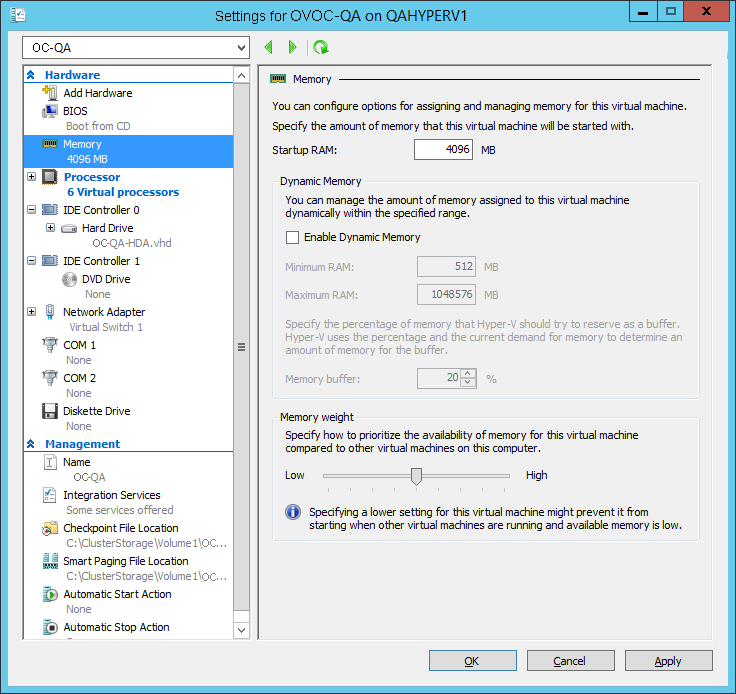
| 2. | In the Hardware pane, select Memory, as shown above, enter the 'Startup RAM’ parameter as required, and then click Apply. |
| 3. | In the Hardware pane, select Processor; the Processor screen shown in the figure below opens. |
Adjusting VM for OVOC server - Settings - Processor
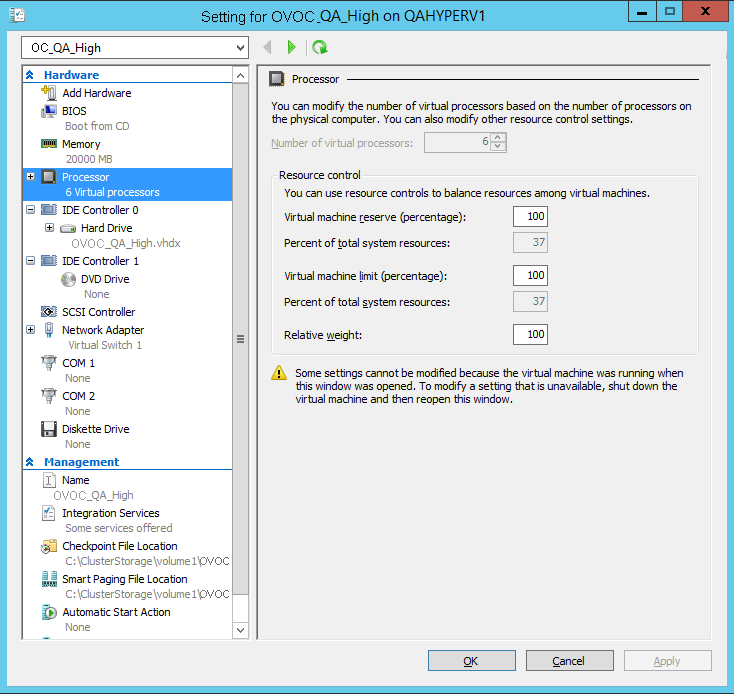
| 4. | Set the 'Number of virtual processors' parameters as required. |
| 5. | Set the 'Virtual machine reserve (percentage)' parameter to 100%, and then click Apply. |
| ● | Once the hard disk space allocation is increased, it cannot be reduced. |
| ● | If you wish to create OVOC VMs in a Cluster environment that supports High Availability and you are using shared network storage, then ensure you provision a VM hard drive on the shared network storage on the cluster (Configuring OVOC Virtual Machines in a Microsoft Hyper-V Cluster). |